How to translate a PDF and keep its images and layout
Choose the right translation mode for your PDF, retain diagrams and page structure, and check the result before exporting.
By PixLate · Updated
Start by checking the source PDF
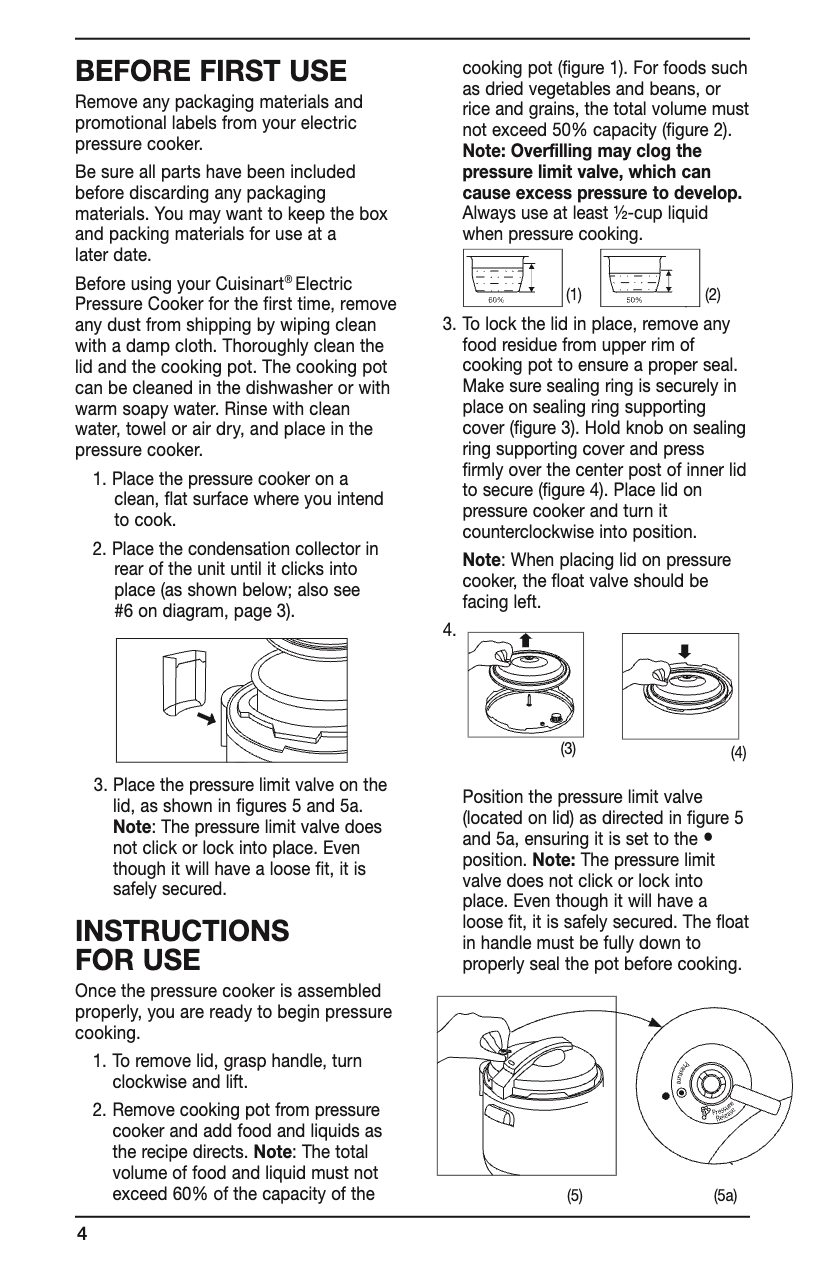
Open the PDF and try selecting a sentence. A usable text layer lets a translator work with text boxes while retaining the original page graphics. If you can only select the whole page as an image, it is likely a scan. Some PDFs contain both kinds of pages, and scanned pages can also have an OCR text layer.
Selection alone does not prove that the text layer is usable. Copy a paragraph and check its characters and reading order. A page that looks correct can contain broken encoding or text arranged in the wrong order. Test a page with the most demanding layout before translating the whole document.
Translate selectable text with Text Layer
Import the PDF in the PixLate editor, select a page, and choose Text Layer. Inspect the extracted passages and their order before translating. Keep a sentence together if the original layout splits it across columns or neighboring pages.
Choose the target language and check the processing estimate. After translation, review the preview and edit wording, font size, or placement where needed. Text Layer supports a selectable PDF export, so the result can retain searchable text as well as the original page graphics.
Translate text inside images with Visual AI
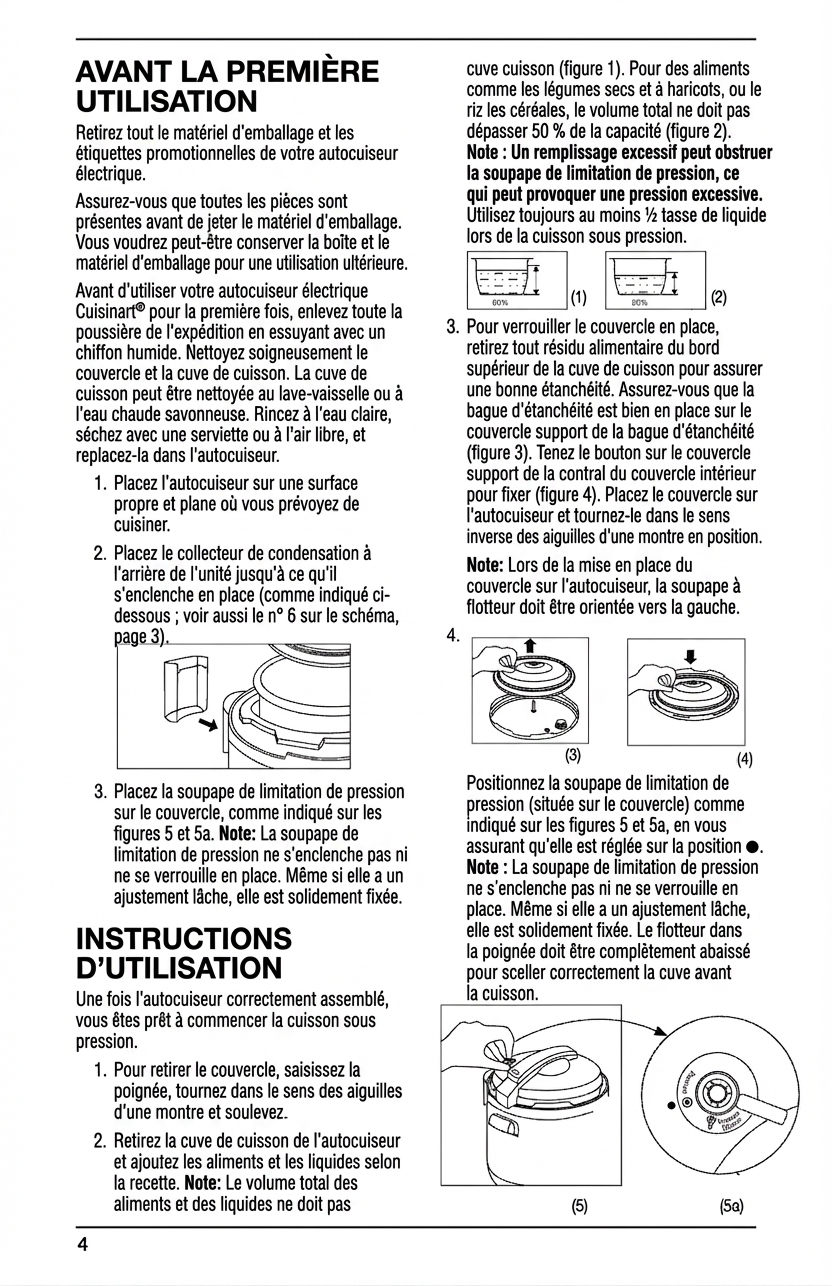
A selectable text layer does not necessarily include words inside a diagram, screenshot, or illustration. Inspect those regions separately. For a scan or a page whose important text is embedded in artwork, use Visual AI and compare the translated page with the original.
Visual AI creates an image-based translated result. Exporting it as a PDF keeps the visual page, but does not make all translated lettering selectable text. Choose the mode based on the output you need rather than assuming every PDF export has the same properties.
Check the layout before downloading
Look at captions, table cells, page numbers, units, and small labels. Translations can be longer than the source, which can change line breaks or require adjustments to text placement. Check that an image has kept its meaning, not just its position.
Open the exported PDF in a separate viewer and inspect the same sample page. For selectable output, try searching for a translated word and copying a paragraph. For technical instructions, have a qualified reader verify the wording and numbers before relying on the document.